
CamCard - BCR (Western)
INTSIGBusiness
4.1638.00 Reviews
- Version
- 7.89.5.20260807
- Installs
- 50.00K
- Age Rating
- Everyone
Screenshots
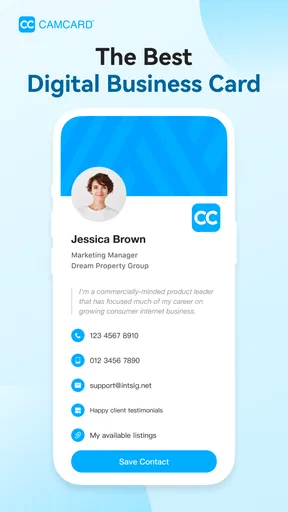
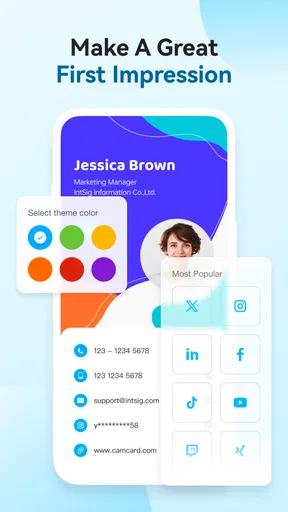
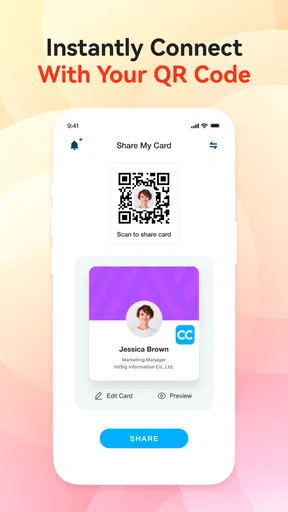
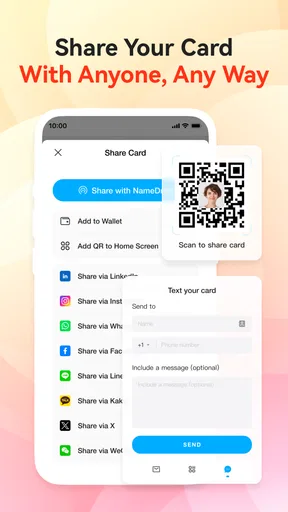
Our Review of CamCard - BCR (Western)
 Analysis by Appyee
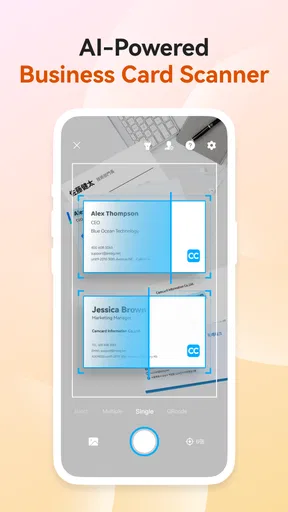
I found CamCard - BCR (Western) most useful when I treated it as a small contact-management tool rather than simply a camera that reads paper cards. Its main job is straightforward: capture business cards, turn their printed details into digital contact information, and help me keep those details available when I need them. That makes it a practical business app for people who still exchange cards at meetings, conferences, appointments, or local networking events.
The first thing to understand is that the experience depends on the quality of the card and the clarity of the photograph. A clean, flat card with readable text gives the app a much easier task than a glossy card photographed at an angle under poor lighting. I would not install it expecting every scan to be perfect without checking the result. I would install it because it can reduce the tedious work of typing names, companies, phone numbers, and email addresses one by one.
The best way to use CamCard is to treat every scan as a draft that deserves a quick review. That small habit is what turns it from a convenient novelty into a dependable part of a contact workflow. The app is developed by INTSIG, and it belongs in the business category, with a Everyone content rating. It is available for $0.99, while in-app purchases range from $3.49 to $399.99 per item, so I would look carefully at the purchase options before building a large workflow around it.
Getting from installation to a useful digital contact
I’d use the first scan as a small test of the whole routine, not just the camera: capture one clear card, check the details that could derail a follow-up, then add a brief reminder while the conversation is still fresh. That makes it easier to judge whether the app fits the cards you actually collect and sets up a simple next step: reviewing the saved contact before you rely on it.
What to expect when you open it
CamCard - BCR (Western) is focused on a particular problem: paper business cards are easy to collect and surprisingly easy to lose. The app’s store summary describes it as a digital business card and paper card scanner, and that is a fair description of the role it plays. I see it as a bridge between a physical introduction and a searchable digital record.
That distinction matters because this is not necessarily the best choice for someone who never receives paper cards. If almost all of your networking happens through messaging apps, email signatures, or digital contact sharing, a normal contacts app may be simpler. CamCard becomes more convincing when a pocket, desk drawer, or conference bag starts filling with cards that you want to use later.
On the store, it shows an average rating of 4.1 from around 4.1 thousand ratings, with around 638 written reviews and over 50 thousand installs. I read those figures as signs of a focused app with an established audience, not as a guarantee that every scan will match every card design. Business cards vary enormously, and recognition quality is naturally affected by typography, contrast, language, logos, and layout.
The app has been available since February 9, 2010, and its current version is 7.89.5.20260807. It requires at least iOS or Android version 10, depending on the platform version you use. That makes checking device compatibility a sensible first step, especially if you are using an older phone that still works well for everyday tasks but no longer receives major operating-system updates.
Setting up without creating unnecessary work
My advice for a first session is not to begin with a stack of cards from a busy event. Start with one card that is clean, familiar, and easy to verify. This gives you a low-pressure way to learn where the scan controls are, how the captured information is presented, and how much correction the result needs.
Before taking the picture, place the card on a contrasting, flat surface. Keep the phone parallel to the card instead of holding it at a steep angle. Reflections from laminated cards can hide digits and punctuation, while a shadow across the lower half can make a phone number or email address harder to recognize. These are simple changes, but they often matter more than repeatedly pressing the scan button.
I also recommend deciding in advance how you want to organize the result. If you only need a name and phone number, a quick contact record may be enough. If you are collecting cards for sales follow-up, recruiting, suppliers, or event contacts, consistent notes and labels will be more valuable than a large pile of unreviewed scans. The app can only help with information you actually preserve and check.
There is another practical consideration: the low entry price does not necessarily represent the total cost of every possible workflow. The app is listed at $0.99, and additional purchases are shown inside the product. I would begin with the basic experience and only consider an upgrade after I understood which functions I genuinely needed. That avoids paying for capacity or tools before knowing whether the recognition process fits my habits.
Your first successful scan
For a reassuring first success, choose a card with a conventional layout: one clear name, one company, a visible phone number, and an email address printed in strong contrast. Frame the entire card, hold the phone steady, and give the app a moment to process the image. Once the details appear, compare them directly with the paper card rather than assuming the text is correct.
Pay particular attention to characters that are easy to confuse. A zero and the letter “O” can look similar, as can a lowercase “l” and the number “1”. Email addresses deserve special attention because one incorrect character can make an otherwise accurate contact unusable. Company names and web addresses can also contain punctuation that deserves a manual check.
After correcting the fields, save the contact in a way that will make sense later. I prefer to keep the person’s actual name as the primary identity and use notes for context, such as where we met or what we discussed. That is more useful than relying on memory several weeks later. A scan is only the beginning; the meaningful result is a contact record that helps me start the next conversation.
A realistic example would be meeting a freelance designer at a local business event. Instead of dropping the card into a wallet and hoping to remember it, I would scan it before leaving, correct the email address, and add a short note about the project we discussed. The next morning, I could find the person by name and write a relevant message rather than sending a vague introduction with no context.
Where the app saves time, and where it does not
The clearest time saving comes from avoiding repetitive typing. Even when I need to correct a field, editing a mostly accurate result is faster than entering every detail from an empty contact form. This is particularly helpful when several cards share a similar structure and the printed information is crisp.
However, I would not use a fast scanning session as an excuse to skip verification. A wrong digit in a phone number is worse than no digit at all because it can send a call or message to the wrong person. A misspelled domain can make a business appear unreachable. The app reduces data entry, but it does not replace judgment.
One useful workflow is to scan in small batches and review each contact immediately. I find that more reliable than photographing a large stack and promising myself I will inspect everything later. Immediate review also preserves the memory of the conversation, making it easier to add a helpful note while the meeting is still fresh.
Another practical tip is to separate capture from follow-up. During a crowded event, focus on obtaining a readable scan and recording a short reminder. Later, when you have time, clean up names, company details, and notes. Trying to write a complete profile while people are waiting can slow the interaction and make the app feel more cumbersome than it really is.
Common points of confusion for new users
The biggest misunderstanding is expecting the camera to understand every card exactly as a person would. A business card may use decorative fonts, multiple languages, icons instead of labels, or a layout where the job title is separated from the person’s name. Recognition can struggle when the visual design is more creative than conventional.
Cards with dark backgrounds, reflective finishes, very small text, or heavy branding deserve extra care. If the first image is unclear, I would change the lighting and angle before assuming the app has failed. A clean second capture is often more useful than trying to repair a poor image afterward.
It is also easy to confuse storing an image with creating a useful contact. A photograph of the card preserves what was printed, but searchable and actionable details require the recognized fields to be correct. I would always open the saved entry and check the information that matters most to me. The more important the relationship, the less sensible it is to rely on an unchecked scan.
Another question first-time users often have is whether the app is suitable for every kind of contact. I think it is strongest for business cards and professional introductions. It is less compelling for handwritten notes, informal scraps of paper, or documents that require full document scanning rather than contact extraction. Those tasks are better handled by a document scanner or a standard notes app designed for broader capture.
Users may also wonder whether they need to replace their existing contacts app. I would not do that automatically. CamCard can serve as the intake point for newly collected cards, while the phone’s regular contacts system remains the place for people I call frequently. Keeping those roles clear prevents duplicate entries and reduces the chance of creating several versions of the same person.
Comparing it with ordinary alternatives
The usual alternative is manual entry into the phone’s contacts app. Manual entry gives complete control and avoids recognition mistakes, but it becomes slow when several cards arrive together. CamCard’s advantage is speed at the capture stage, especially when the card is printed clearly and the user is willing to review the result.
A general document-scanning app may be better if the goal is to preserve invoices, receipts, forms, or multi-page paperwork. Those tools are designed around document images and may offer broader capture options. CamCard is more specialized: its value comes from turning a business card into contact-oriented information rather than merely storing a picture.
Digital business-card platforms can be a better choice when everyone in a group already uses the same sharing system. They may reduce paper entirely, while CamCard is most useful after a physical exchange has already happened. I would choose this app for mixed real-world situations where some contacts still hand over cards and I need a practical way to digitize them.
There is also a simple camera-and-notes approach. Taking a photo and writing a reminder costs nothing beyond time, and it may be enough for occasional use. The trade-off is that searching and reusing the details later can be awkward. CamCard earns its place when I want the information to become more structured than a gallery image with a vague note attached.
Who will benefit most from it
I can recommend CamCard to freelancers, consultants, salespeople, recruiters, event attendees, and small-business owners who regularly meet new professional contacts. It is also useful for anyone who attends occasional conferences but does not want to maintain a complicated customer-management system. The app’s focused purpose makes sense when the problem is paper-card accumulation rather than full-scale relationship management.
It may also help a person who changes phones or works across several professional contexts, provided they are comfortable reviewing and organizing captured contacts. The important benefit is not simply having a digital copy. It is being able to turn a brief introduction into a record that can support a later call, proposal, appointment, or collaboration.
I would suggest skipping it if you receive only a few cards each year and already type them into your contacts without frustration. I would also hesitate if you need advanced sales automation, shared team pipelines, detailed customer histories, or a complete business database. A card scanner can begin a relationship record, but it is not a substitute for a dedicated customer-management platform.
Small habits that make the workflow better
First, scan before the card disappears into a wallet or bag. The best moment is usually immediately after the conversation, when both the person’s name and the reason for connecting are still clear. Second, add a short, specific note rather than a generic phrase. “Discussed packaging redesign in June” is far more useful than “met at event.”
Third, create a review routine after an event. I would set aside a quiet moment to check names, emails, phone numbers, and notes while the cards are still nearby. This catches errors and prevents the digital record from becoming a collection of half-finished entries.
Fourth, photograph difficult cards deliberately. For a glossy card, move away from direct overhead light. For a dark card, find a brighter environment without creating glare. For a card with a complex layout, take extra care to include all edges and avoid cropping the small print. These techniques are simple, but they are more dependable than expecting software alone to solve a difficult image.
Finally, avoid scanning duplicates without a reason. If I meet the same person again, I would update the existing contact or add a new note rather than creating another nearly identical entry. That keeps the information useful over time and reduces the cleanup that can make contact tools frustrating.
My recommendation after using it
CamCard - BCR (Western) is a sensible choice for a first-time user who wants a direct path from paper card to digital contact. The process is easiest when I start with one readable card, review the recognized fields, and attach a note that gives the contact meaning. That approach delivers a useful result quickly without requiring a complicated setup.
I like its specialization. It does not try to be a general-purpose office suite in my workflow; it addresses the awkward moment when a professional introduction produces a small piece of paper that I may otherwise forget. The app can save time, particularly during busy networking sessions, but only when I treat recognition as assistance rather than unquestionable transcription.
The price is accessible, though the presence of in-app purchases means I would check the available options before committing to heavy or repeated use. Its Everyone rating makes it broadly approachable, and its long availability suggests that the basic idea has remained relevant. Still, the right choice depends on volume: occasional users may be perfectly happy with manual contacts, while frequent card collectors will get more value from a dedicated scanner.
My final advice is to test it with the kind of card you actually receive, not an ideal example. If the first few scans are readable after a quick correction, CamCard can become a useful part of your networking routine. If your work requires shared pipelines, deep customer histories, or document scanning beyond business cards, I would choose a broader tool instead. For turning ordinary paper introductions into organized, follow-up-ready contacts, though, CamCard - BCR (Western) offers a practical starting point.
Verdict
Strengths of CamCard - BCR (Western)
- Scans business cards quickly with reliable text recognition.
- Supports multiple languages for international contacts.
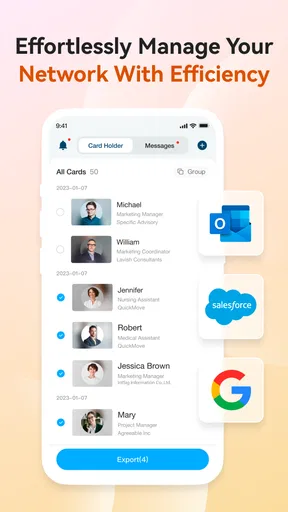
- Exports contacts to phone books, email, and other services.
- Lets you add notes and reminders to follow up with contacts.
- Searches saved cards by name, company, or other details.
Limitations of CamCard - BCR (Western)
- Some advanced features require a paid subscription.
- Recognition accuracy can drop with unusual layouts or poor lighting.
- Cloud syncing may require account registration and internet access.
- The interface can feel dated compared with newer contact apps.
- Privacy-conscious users may hesitate to upload contact data to the cloud.
Similar Picks in This Category
View All
LinkedIn: Community & Network
LinkedIn3.8

Zoom Workplace
zoom.com4.1

Microsoft Teams
Microsoft Corporation4.6

Meta Business Suite
Meta Platforms, Inc.4.6

Webex Meetings
Cisco Systems, Inc.4.5

TeamViewer Remote Control
TeamViewer4.4
Frequently Asked Questions
What is CamCard - BCR (Western) used for?
CamCard - BCR (Western) is a business card scanning and contact management app. After photographing a card, it uses optical character recognition to extract details such as names, companies, phone numbers, email addresses, and websites. You can then save, edit, search, organize, and share those contacts digitally instead of carrying a large collection of paper cards.
How accurate is CamCard’s business card recognition?
Recognition is generally quick and useful, especially when the card is flat, well lit, and printed with clear fonts. However, accuracy can vary depending on unusual layouts, decorative typefaces, glare, low image quality, or handwritten information. It is advisable to check the scanned contact before saving it, particularly for important phone numbers, email addresses, and company names.
Does CamCard - BCR (Western) work without an internet connection?
Some basic functions, such as opening saved contacts and reviewing information already stored on the device, may work offline. Scanning, synchronization, account-related features, or cloud services can require an internet connection depending on the version and platform. If you plan to use the app while traveling or at an event with unreliable connectivity, test the required features beforehand.
Can I export or synchronize contacts created with CamCard?
CamCard is designed to help users keep business contacts organized and may provide options for synchronization, sharing, or exporting information, depending on the installed version, account status, and mobile operating system. Available formats and integrations can change over time. Before relying on the app for professional records, review its current export options and confirm that your contacts can be backed up.
Is CamCard - BCR (Western) safe for storing business card information?
The app handles personal and professional contact details, so privacy deserves attention before use. Review the permissions requested, privacy policy, account settings, and any cloud-synchronization options during setup. Avoid scanning confidential documents or sensitive information unless you understand how the data is processed and stored. Keeping a separate backup is also recommended for valuable business contacts.
